
LibraryHub | Digital Library Management System
Professional documentation for installing, configuring, and using LibraryHub — a self-hosted digital library management system. It combines a Livewire-powered admin panel with a full REST API for catalog management, member tracking, borrowing workflows, reservations, fine calculation, and permission-based operations.
1. Introduction
LibraryHub is a self-hosted digital library management system built for schools, public libraries, universities, and private collections that need full control over their physical and digital catalog, member records, borrowing operations, fine management, and payment invoicing. It provides a Livewire-powered web administration panel, a Member Portal addon for patron self-service, and a full Sanctum REST API for custom integrations and automation. The addon system lets you extend the product without modifying the core codebase.
Admin Panel
Livewire 4 admin for catalog (physical + e-books), members, borrowing, fines, payments, and reports.
REST API
Sanctum-protected REST API for custom integrations, automation, and third-party connections.
Security & Control
Role-based permissions, 2FA via Fortify, activity logs, notifications, and a full fine and invoice system.
Addon System
Install feature modules (including the Member Portal) as ZIP addons without touching core files.
Who It's For
- ✓ School and university libraries managing student borrowing and e-book access
- ✓ Public libraries tracking member subscriptions, fines, and payment invoices
- ✓ Private collections needing organized catalog and lending records
- ✓ Developer teams building custom integrations via the REST API
- ✓ Librarians requiring role-based access, 2FA security, and full audit trails
- ✓ Teams that need to extend functionality via installable addon modules
Core Stack
- • Laravel 12 + Livewire 4 + Alpine.js + Tailwind CSS 4
- • Laravel Sanctum + Spatie Permissions, MediaLibrary, ActivityLog
- • Laravel Fortify (2FA) + akaunting/laravel-setting
- • barryvdh/laravel-dompdf (PDF invoices) + endroid/qr-code (barcodes)
2. Requirements
Make sure your server or hosting account meets the following requirements before starting the installation.
Server Requirements
- ✓ PHP 8.3 or higher
- ✓ MySQL 8.0+ or MariaDB 10.4+
- ✓ Apache or Nginx with URL rewriting enabled
- ✓ HTTPS / SSL certificate for production use
- ✓ Cron access for scheduler and queue handling
Developer Tools
- ✓ Composer 2.x
- ✓ Node.js 18+ and npm 9+
- ✓ SSH or terminal access recommended
- ✓ Ability to run long-lived queue workers on VPS
- ✓ cPanel terminal access if installing on shared hosting
Required PHP Extensions
Before You Begin — Required Setup
You must create and configure your .env file before running the web installer or any CLI commands. Without it, Laravel will not start.
cp .env.example .env
php artisan key:generate
Two environment variables are critical and must be set correctly before installation:
| Variable | Purpose | What breaks if missing |
|---|---|---|
| APP_KEY | Application encryption key. Generated automatically by php artisan key:generate. Never share or commit this value. |
Laravel throws "No application encryption key has been specified" and the application will not start. |
| CORS_ALLOWED_ORIGINS | Comma-separated list of allowed origins for API access — required for the Flutter mobile app or any external frontend SPA. Set to your backend's public URL, e.g. https://your-domain.com. |
The mobile app and external API clients receive CORS errors on every request. |
3. VPS Server Setup
If you are deploying LibraryHub on a VPS or dedicated server, prepare the server first before uploading the application. The example below assumes Ubuntu 22.04 or 24.04 with a fresh server.
Step 1. Update the server
sudo apt update
sudo apt upgrade -y
Step 2. Install Nginx
sudo apt install -y nginx
sudo systemctl enable nginx
sudo systemctl start nginx
Step 3. Install MySQL
sudo apt install -y mysql-server
sudo systemctl enable mysql
sudo systemctl start mysql
sudo mysql_secure_installation
Create the application database and user:
sudo mysql -u root -p

CREATE DATABASE libraryhub CHARACTER SET utf8mb4 COLLATE utf8mb4_unicode_ci;
CREATE USER 'libraryhub_user'@'localhost' IDENTIFIED BY 'StrongPassword123!';
GRANT ALL PRIVILEGES ON libraryhub.* TO 'libraryhub_user'@'localhost';
FLUSH PRIVILEGES;
EXIT;
Step 4. Install PHP and required extensions
sudo apt install -y software-properties-common
sudo add-apt-repository ppa:ondrej/php -y
sudo apt update
sudo apt install -y php8.3 php8.3-fpm php8.3-cli php8.3-mysql php8.3-mbstring \
php8.3-xml php8.3-curl php8.3-bcmath php8.3-zip php8.3-gd php8.3-intl

sudo systemctl enable php8.3-fpm
sudo systemctl start php8.3-fpm
Step 5. Install Composer
cd /tmp
curl -sS https://getcomposer.org/installer | php
sudo mv composer.phar /usr/local/bin/composer
composer --version
Step 6. Install Node.js and npm
curl -fsSL https://deb.nodesource.com/setup_20.x | sudo -E bash -
sudo apt install -y nodejs
node -v
npm -v
Node.js is required to build the frontend assets used by the Livewire and Laravel interface.
Step 7. Upload the project and install dependencies
cd /var/www
sudo mkdir -p libraryhub
sudo chown $USER:$USER libraryhub
cd libraryhub

# Upload and extract the project files here

composer install --optimize-autoloader --no-dev
npm install
npm run build
Step 8. Configure the environment file
APP_NAME="LibraryHub"
APP_ENV=production
APP_DEBUG=false
APP_URL=https://yourdomain.com

DB_CONNECTION=mysql
DB_HOST=127.0.0.1
DB_PORT=3306
DB_DATABASE=libraryhub
DB_USERNAME=libraryhub_user
DB_PASSWORD=StrongPassword123!

QUEUE_CONNECTION=database
SESSION_DRIVER=database
CACHE_STORE=file
Step 9. Run Laravel setup commands
php artisan key:generate
php artisan migrate --seed
php artisan storage:link
php artisan queue:table
php artisan failed:table
php artisan migrate
chmod -R 775 storage bootstrap/cache
php artisan config:cache
php artisan route:cache
php artisan view:cache
Step 10. Configure Nginx virtual host
Create an Nginx site configuration for your domain:
sudo nano /etc/nginx/sites-available/libraryhubserver {
listen 80;
server_name yourdomain.com www.yourdomain.com;
root /var/www/libraryhub/public;
index index.php index.html;
add_header X-Frame-Options "SAMEORIGIN";
add_header X-Content-Type-Options "nosniff";
location / {
try_files $uri $uri/ /index.php?$query_string;
}
location ~ \.php$ {
include snippets/fastcgi-php.conf;
fastcgi_pass unix:/var/run/php/php8.3-fpm.sock;
}
location ~ /\.ht {
deny all;
}
}Enable the site:
sudo ln -s /etc/nginx/sites-available/libraryhub /etc/nginx/sites-enabled/
sudo nginx -t
sudo systemctl reload nginx
Step 11. Configure the queue worker with Supervisor
sudo apt install -y supervisorCreate the worker configuration:
sudo nano /etc/supervisor/conf.d/libraryhub-worker.conf[program:libraryhub-worker]
process_name=%(program_name)s_%(process_num)02d
command=php /var/www/libraryhub/artisan queue:work --sleep=3 --tries=3 --timeout=120
autostart=true
autorestart=true
user=www-data
numprocs=1
redirect_stderr=true
stdout_logfile=/var/www/libraryhub/storage/logs/worker.logsudo supervisorctl reread
sudo supervisorctl update
sudo supervisorctl start libraryhub-worker:*Step 12. Add the Laravel scheduler cron job
crontab -e* * * * * php /var/www/libraryhub/artisan schedule:run >> /dev/null 2>&1Step 13. Install SSL with Certbot
sudo apt install -y certbot python3-certbot-nginx
sudo certbot --nginx -d yourdomain.com -d www.yourdomain.com
Test renewal:
sudo certbot renew --dry-runUseful maintenance commands
php artisan optimize:clear
php artisan queue:work
sudo supervisorctl status
sudo systemctl status nginx
sudo systemctl status php8.3-fpm
sudo systemctl status mysql4. Installation
Follow the steps below in order. These instructions work for VPS, dedicated servers, and hosting accounts that provide terminal access.
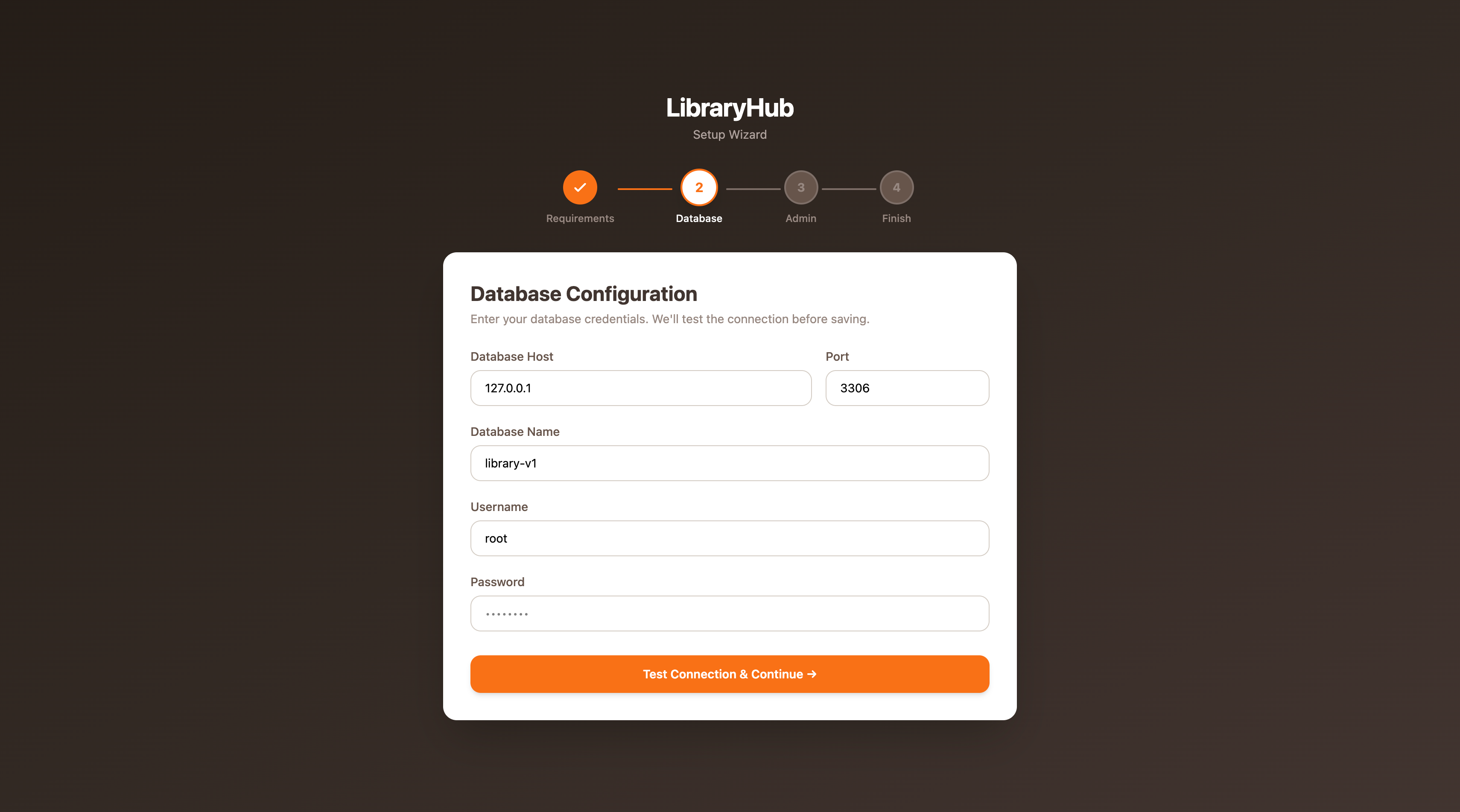
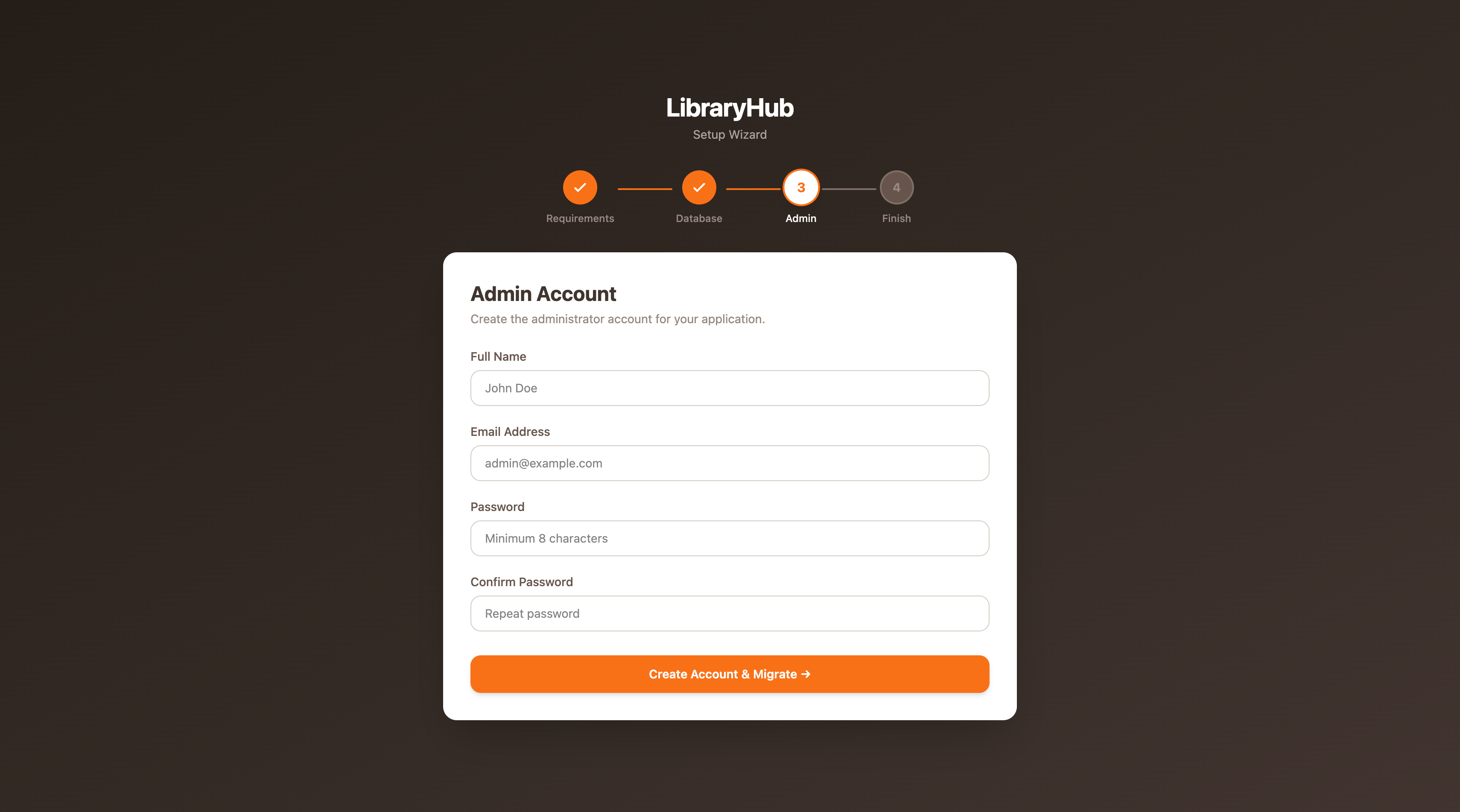
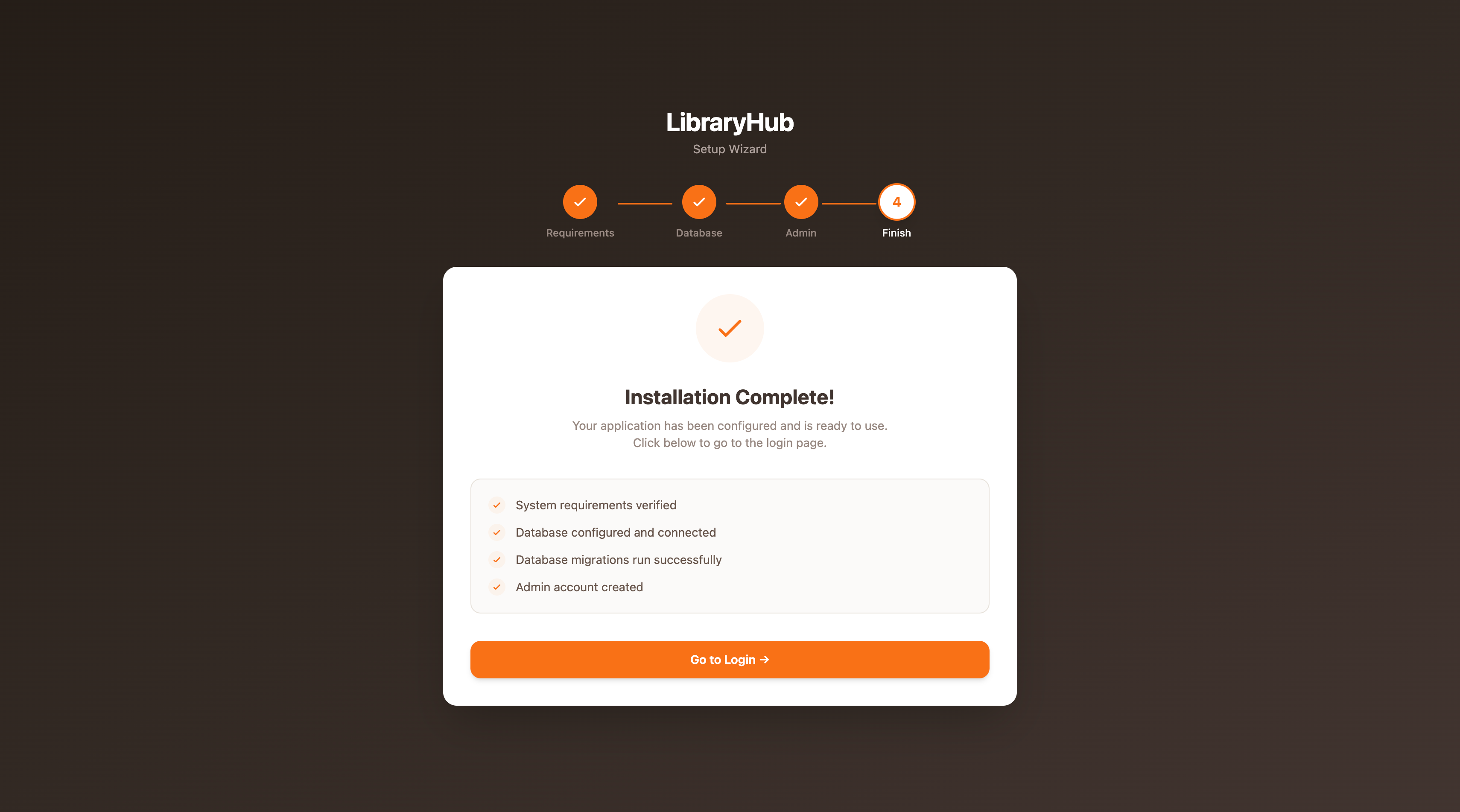
Installation Screens
Click any image to open full size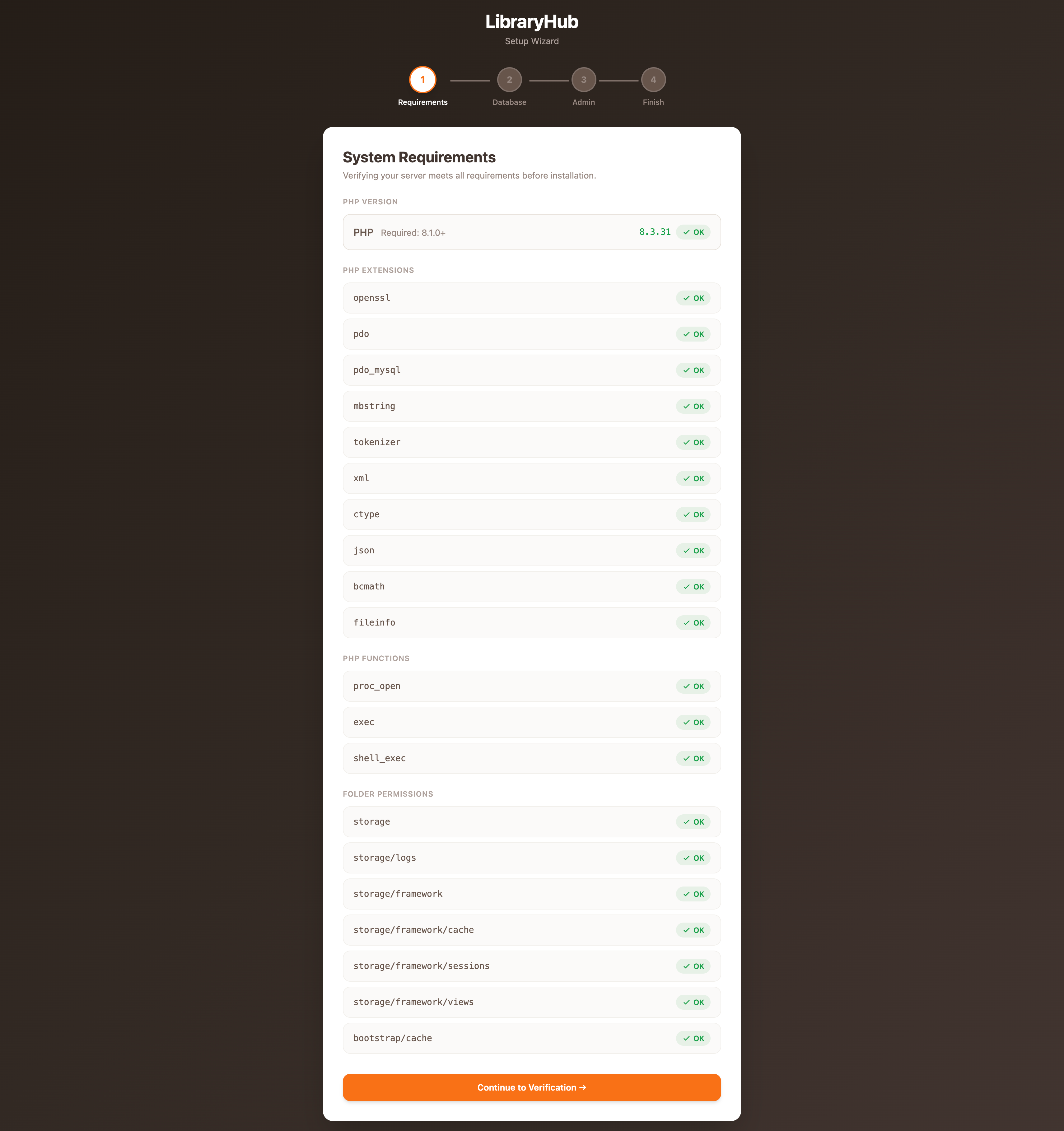
Step 1. Upload or extract the project files
Upload the LibraryHub source package to your server, then extract it inside your target directory.
cd /var/www
unzip libraryhub.zip -d libraryhub
cd libraryhub
If you use cPanel, upload the ZIP with File Manager, extract it, then open Terminal in the project directory.
Step 2. Create and update the environment file
cp .env.example .envEdit the .env file and update the application URL, database credentials, and queue driver.
APP_NAME="LibraryHub"
APP_ENV=production
APP_KEY=                         # filled by: php artisan key:generate
APP_DEBUG=false
APP_URL=https://yourdomain.com

# CORS — required for Flutter mobile app / external API clients
# Comma-separated list of allowed origins
CORS_ALLOWED_ORIGINS=https://yourdomain.com

DB_CONNECTION=mysql
DB_HOST=127.0.0.1
DB_PORT=3306
DB_DATABASE=libraryhub
DB_USERNAME=your_db_user
DB_PASSWORD=your_db_password

QUEUE_CONNECTION=database
CACHE_STORE=file
SESSION_DRIVER=database
Step 3. Install PHP dependencies
composer install --optimize-autoloader --no-devStep 4. Generate the application key
php artisan key:generateStep 5. Install frontend dependencies and build assets
npm install
npm run build
Step 6. Run migrations and seed the initial data
php artisan migrate --seedThis prepares the database tables and inserts default system data including demo books, membership types, and the Super Admin account.
Step 7. Link the storage directory
php artisan storage:linkStep 8. Configure file permissions
chmod -R 775 storage bootstrap/cacheStep 9. Create queue tables if needed
If you are using the database queue driver, make sure the queue tables exist.
php artisan queue:table
php artisan failed:table
php artisan migrate
Step 10. Start the queue worker
Background jobs (notifications, overdue fine calculations) depend on a running queue worker.
php artisan queue:work --tries=3Recommended Supervisor configuration for VPS:
[program:libraryhub-worker]
process_name=%(program_name)s_%(process_num)02d
command=php /var/www/libraryhub/artisan queue:work --sleep=3 --tries=3 --timeout=120
autostart=true
autorestart=true
stopasgroup=true
killasgroup=true
user=www-data
numprocs=1
redirect_stderr=true
stdout_logfile=/var/www/libraryhub/storage/logs/worker.log
Step 11. Add the Laravel scheduler cron
* * * * * php /var/www/libraryhub/artisan schedule:run >> /dev/null 2>&1Shared hosting note: If your hosting panel supports URL-based cron jobs instead of shell commands, use the scheduled task endpoint with the required token query parameter.
Step 12. Final optimization commands
php artisan config:cache
php artisan route:cache
php artisan view:cache5. Configuration
After installation, log in to the admin panel and review the main settings areas before going live.
Settings Panel Categories
All settings are managed from Admin Panel → Settings. No .env edits required for day-to-day configuration:
- • General — library name, logo, favicon, timezone, currency
- • Email — SMTP host, port, username, password, sender name
- • Payment — enable/disable payment gateway integration
- • SEO — meta title, description, and keywords
- • Social Media — links to library social profiles
- • Operating Hours — library open/close schedule by day
- • Invoice — prefix, starting number, and footer text for PDF invoices
Queue Driver
A running queue worker is required for background jobs: overdue fine calculation, email notifications, and reservation fulfillment. Recommended drivers:
- •
database— for simple or shared-hosting deployments - •
redis— for higher-throughput VPS/dedicated environments
QUEUE_CONNECTION=databaseOn VPS, manage the worker with Supervisor (see VPS Setup, Step 11).
Post-Installation Checklist
- Log in with the Super Admin account (
admin@example.com/123456) and change the password immediately. - Open Settings → General and set your library name, logo, favicon, timezone, and currency.
- Open Settings → Email and configure SMTP credentials. Send a test email to verify delivery.
- Open Settings → Invoice and set the invoice prefix and footer text before issuing any payments.
- Configure membership types with borrow limits, loan duration, and daily fine rates.
- Add book categories, authors, and publishers before importing the catalog.
- Enable 2FA from your admin profile for additional account security.
- Install the Member Portal addon from Admin Panel → Addons if a patron-facing interface is needed.
- Add a test book, issue it to a test member, and run a return to verify fines and notifications.
6. Features Overview
Admin Panel Screenshots
Click any image to open full size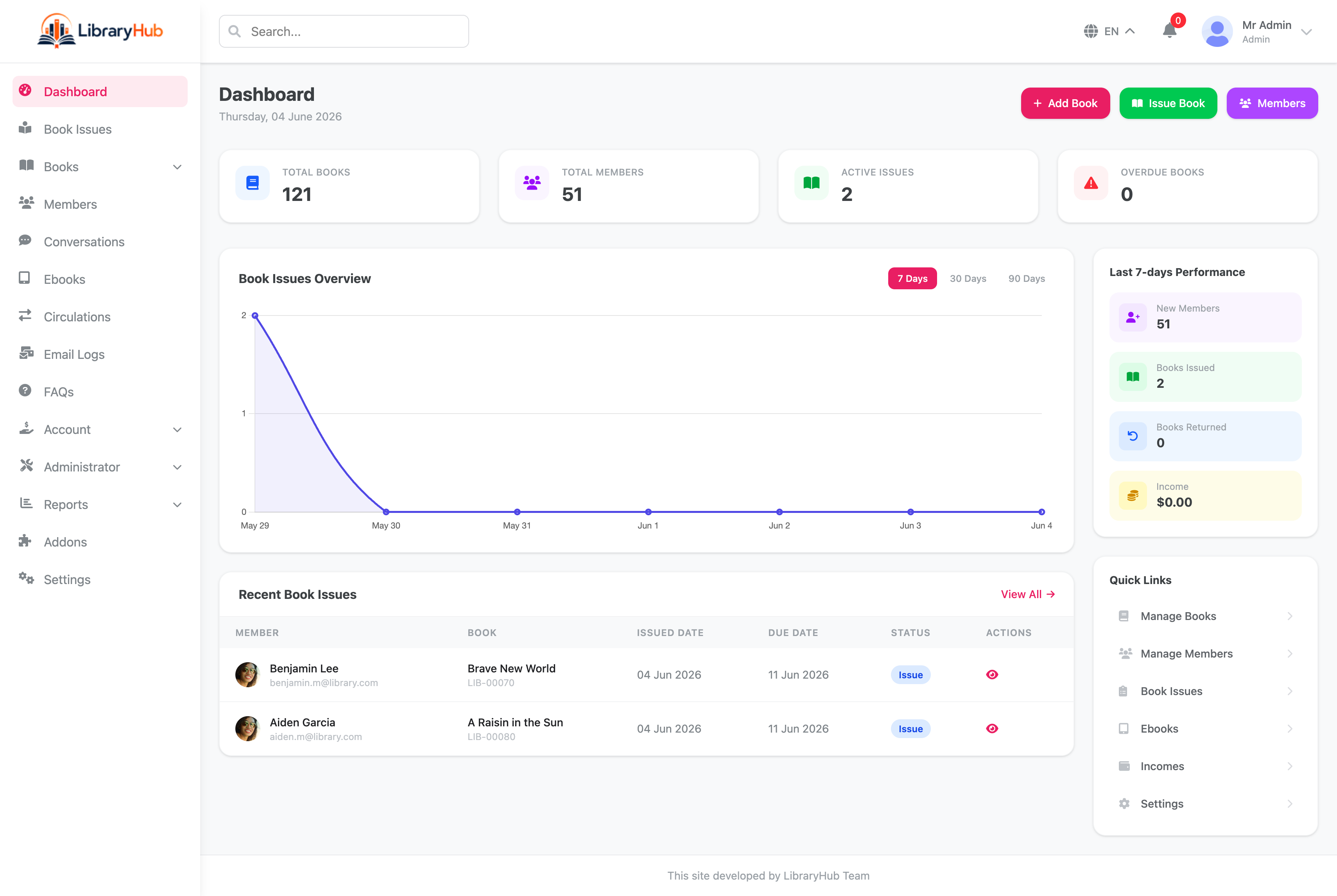
Dashboard
Real-time stat cards for total books, members, active issues, and overdue count. Book Issues Overview chart with 7-day, 30-day, and 90-day views. Recent book issues table and a Last 7-Days Performance panel showing new members, books issued, returned, and income at a glance.
Book Catalog
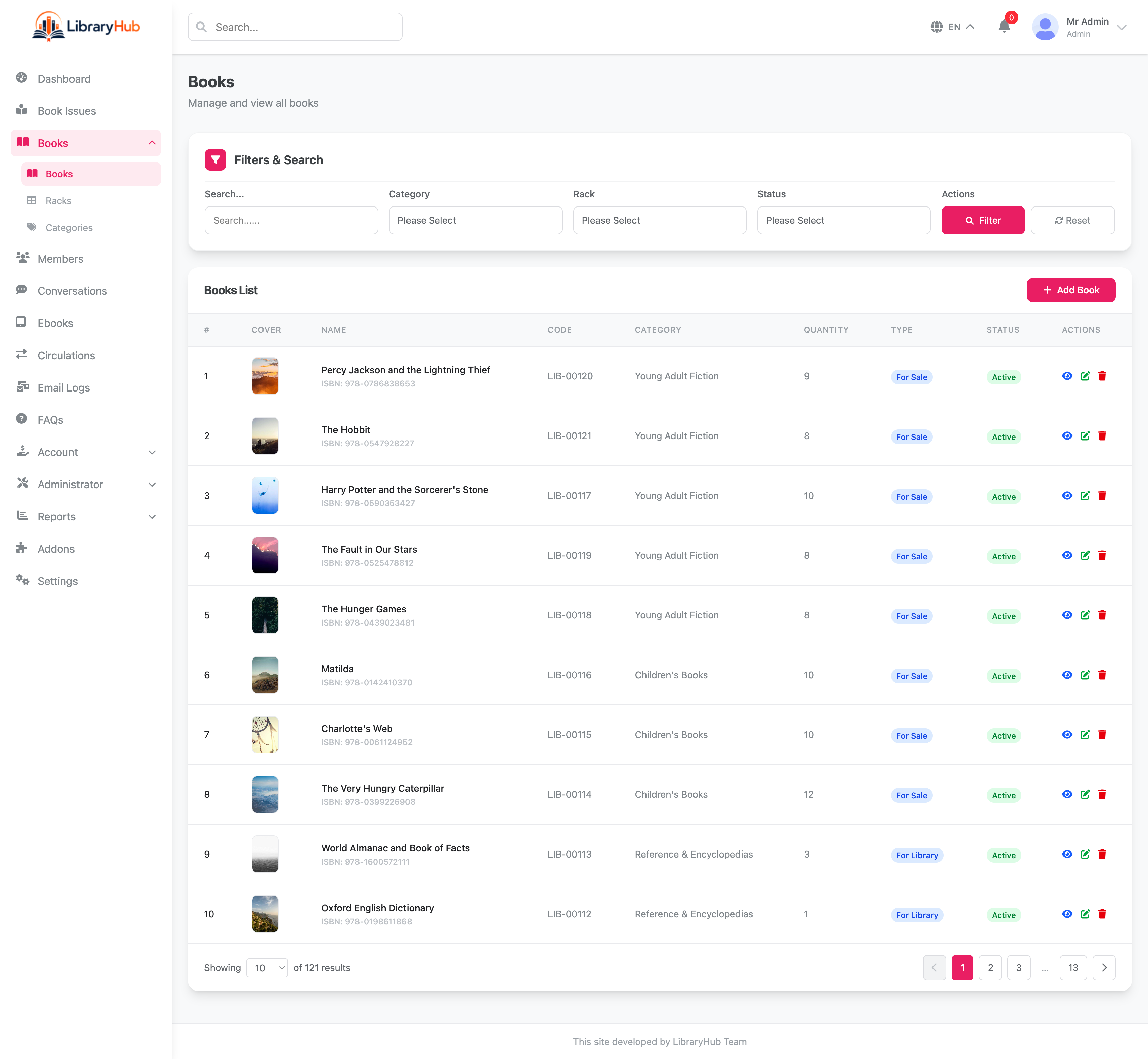
Full book list with cover images, unique book codes, category, quantity, type (For Sale / For Library), and active/inactive status. Filter by category, rack, and status. Add books individually or import in bulk via CSV. Paginated view with quick-action buttons per row.
Member Management
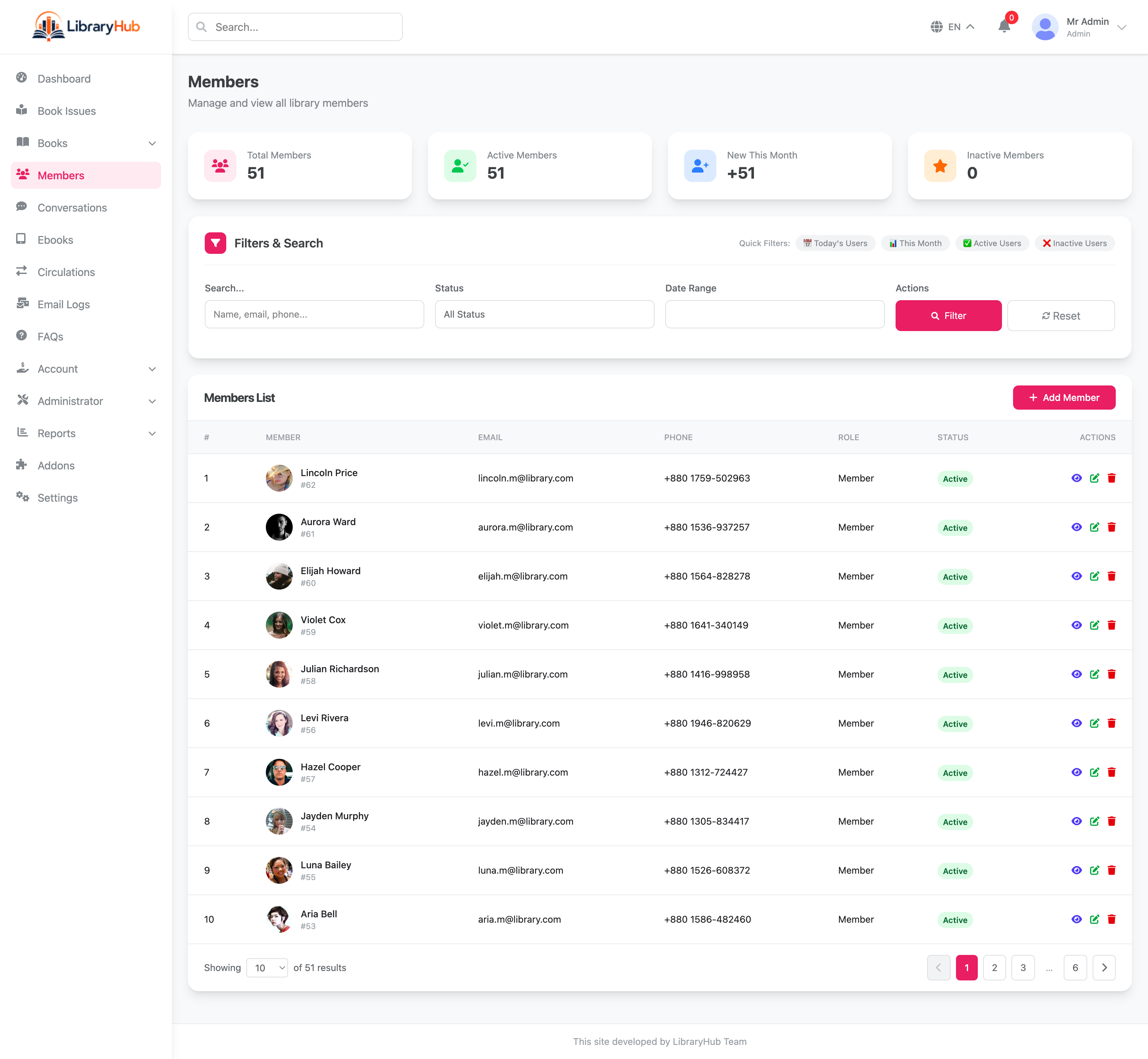
Stat cards for total, active, new this month, and inactive members. Filter members by status and date range. Member list shows avatar, name, email, phone number, assigned role, and status. Add new members and manage profiles from a single screen.
Book Issue & Barcode Scanner
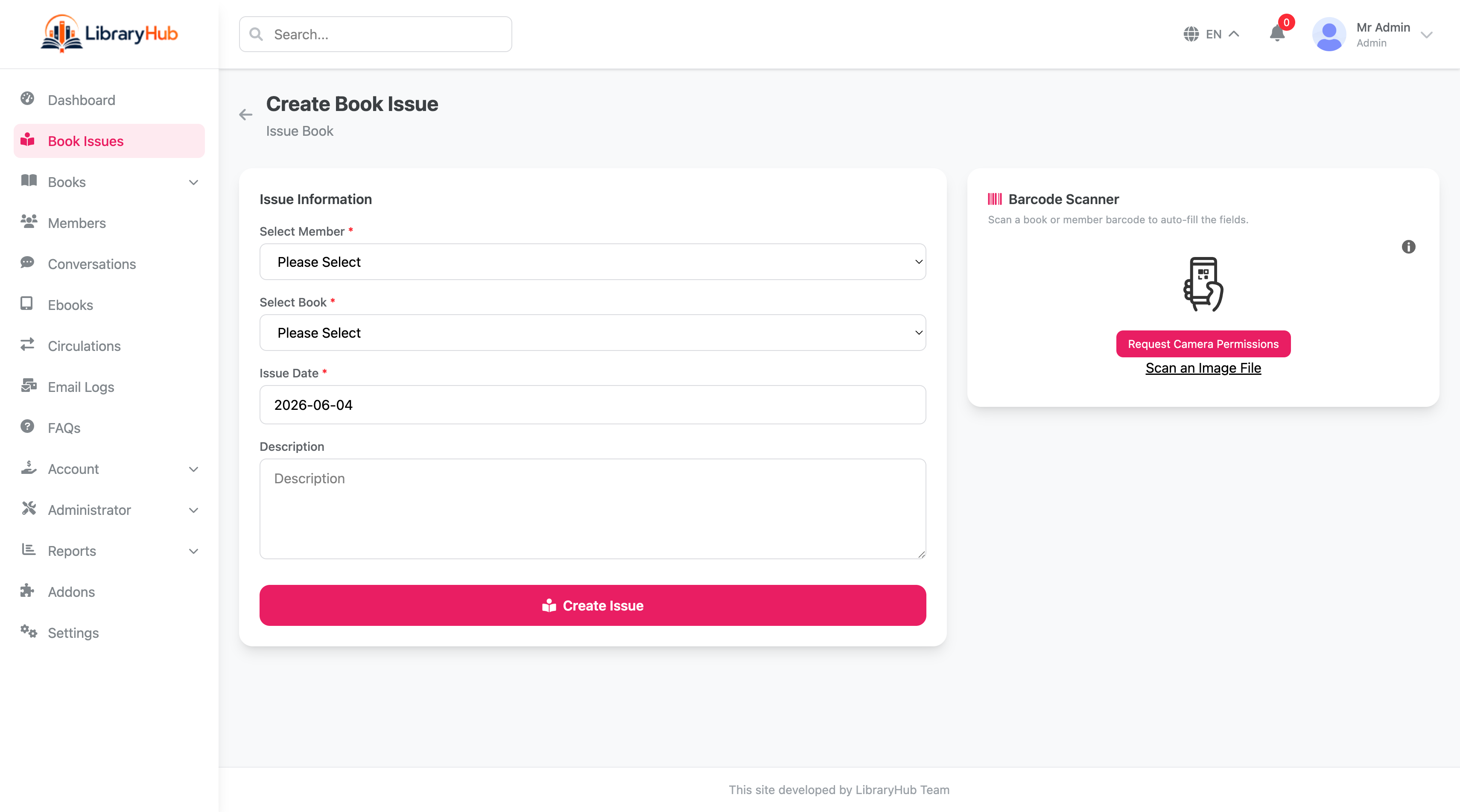
Create book issues by selecting member, book, and issue date. A built-in barcode scanner panel lets staff scan a book or member barcode via camera or image file to auto-fill the form — eliminating manual lookup during busy issue sessions.
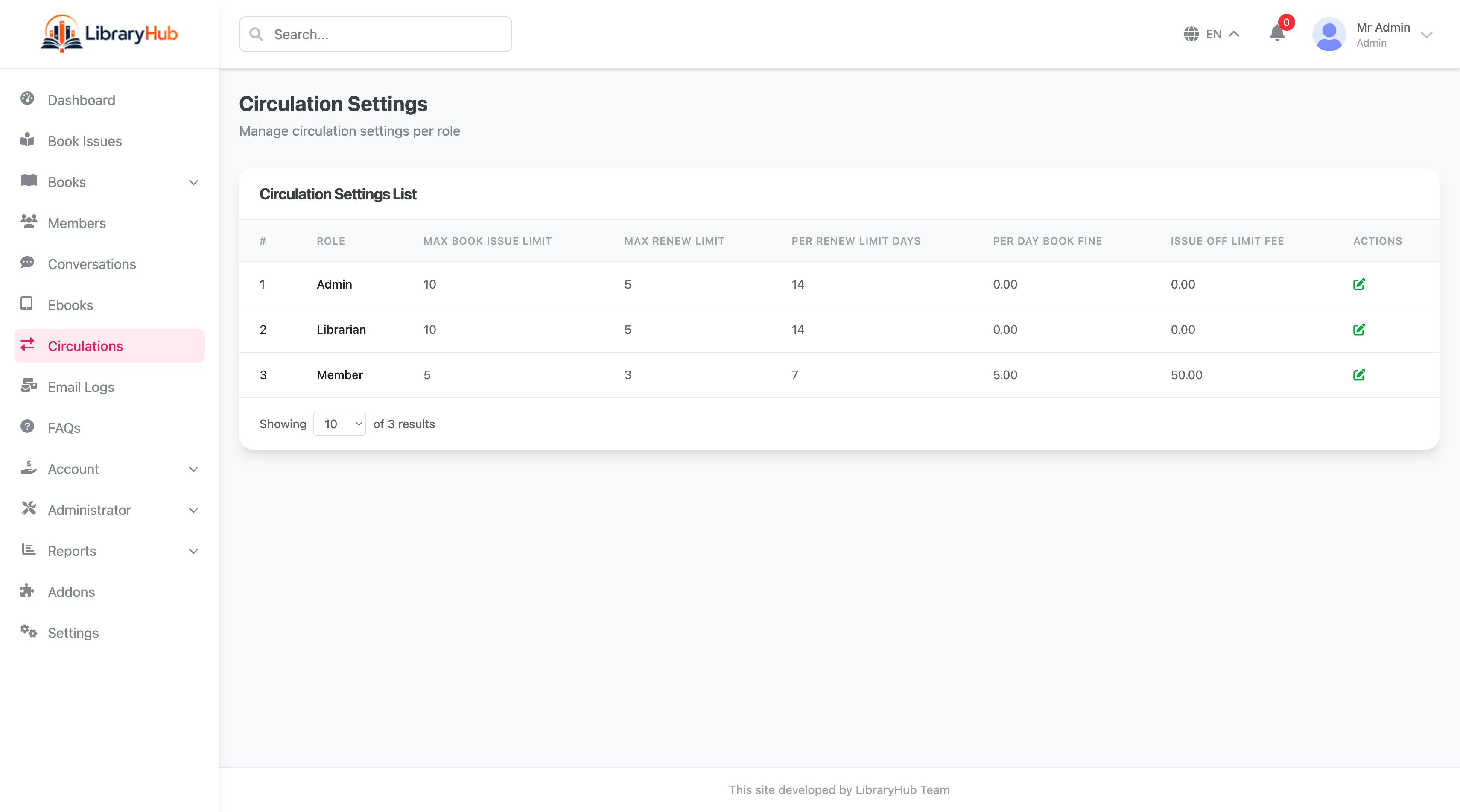
Circulation Settings
Configure borrowing rules per role — Admin, Librarian, and Member. Each role has its own max book issue limit, max renewal limit, per-renewal loan days, per-day book fine rate, and issue off-limit fee. Keeps institutional policies enforced automatically without code changes.
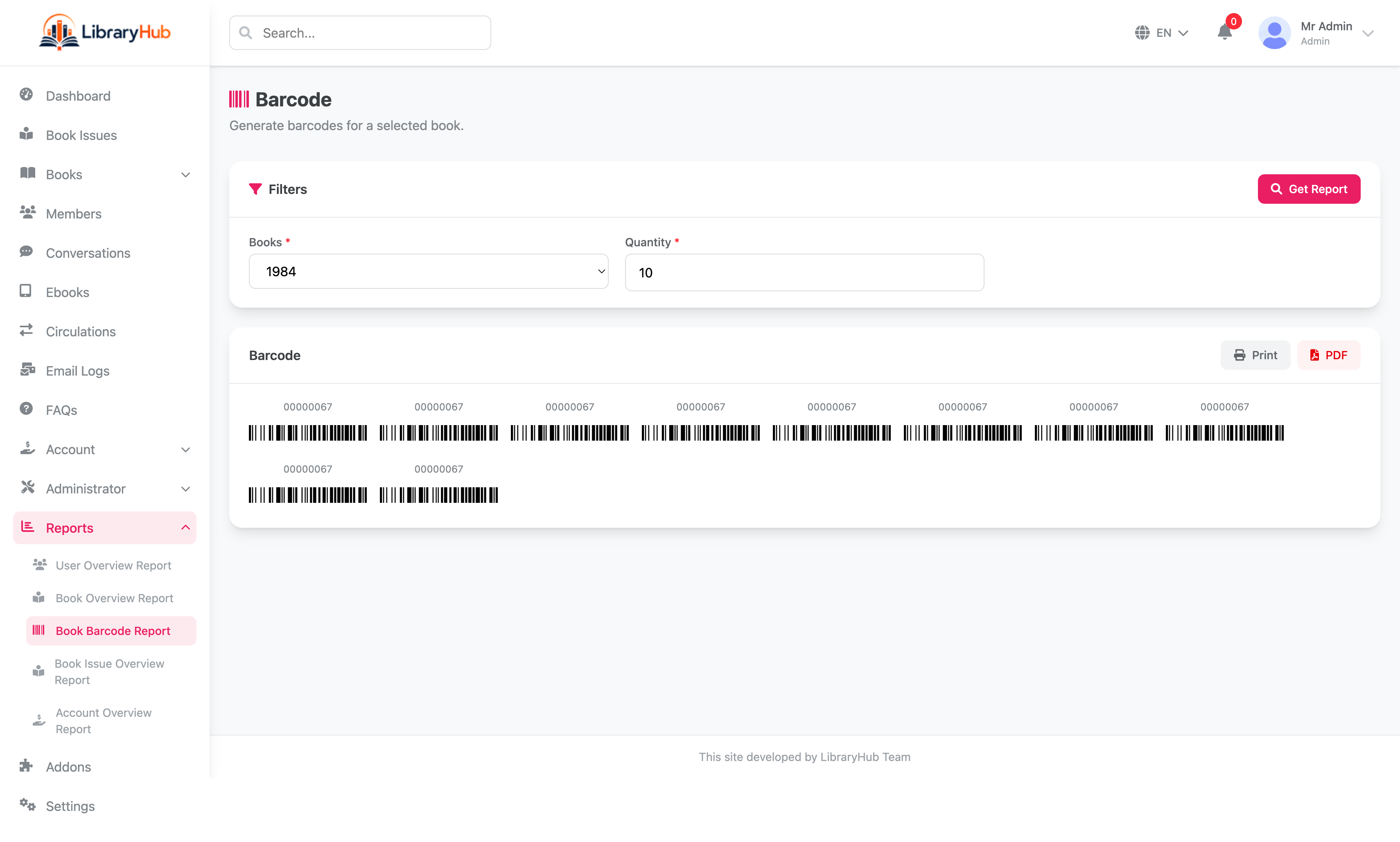
Barcode Report Generator
Select any book and specify a quantity to generate a batch of printable barcodes for physical copy labeling. Output renders directly in the browser and can be exported as a PDF or sent to a printer — essential for cataloging new acquisitions.
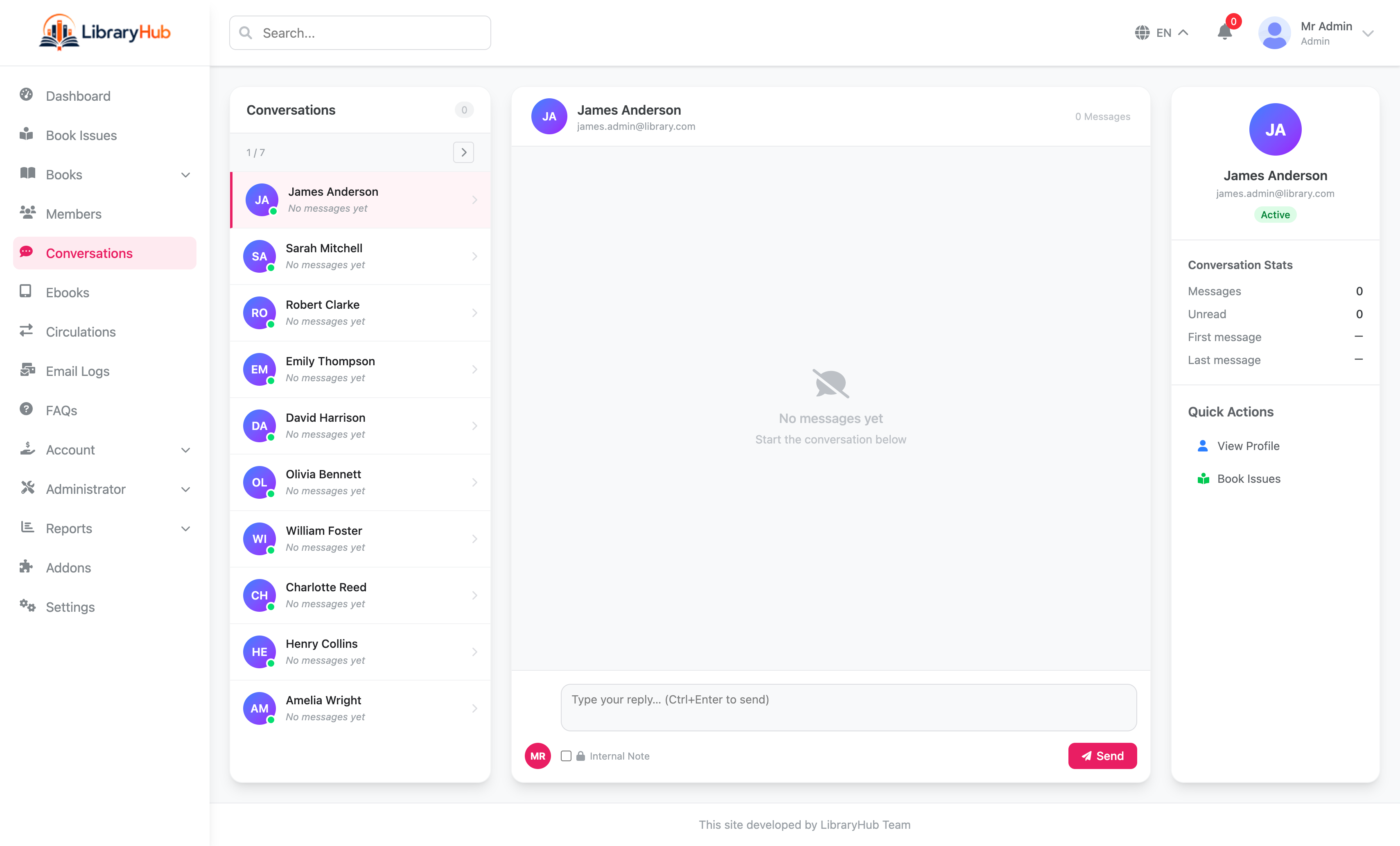
Conversations
Three-panel messaging interface: a scrollable member conversation list on the left, the message thread in the center, and member profile details with conversation stats (messages, unread, first/last message) on the right. Staff can send replies or internal notes.
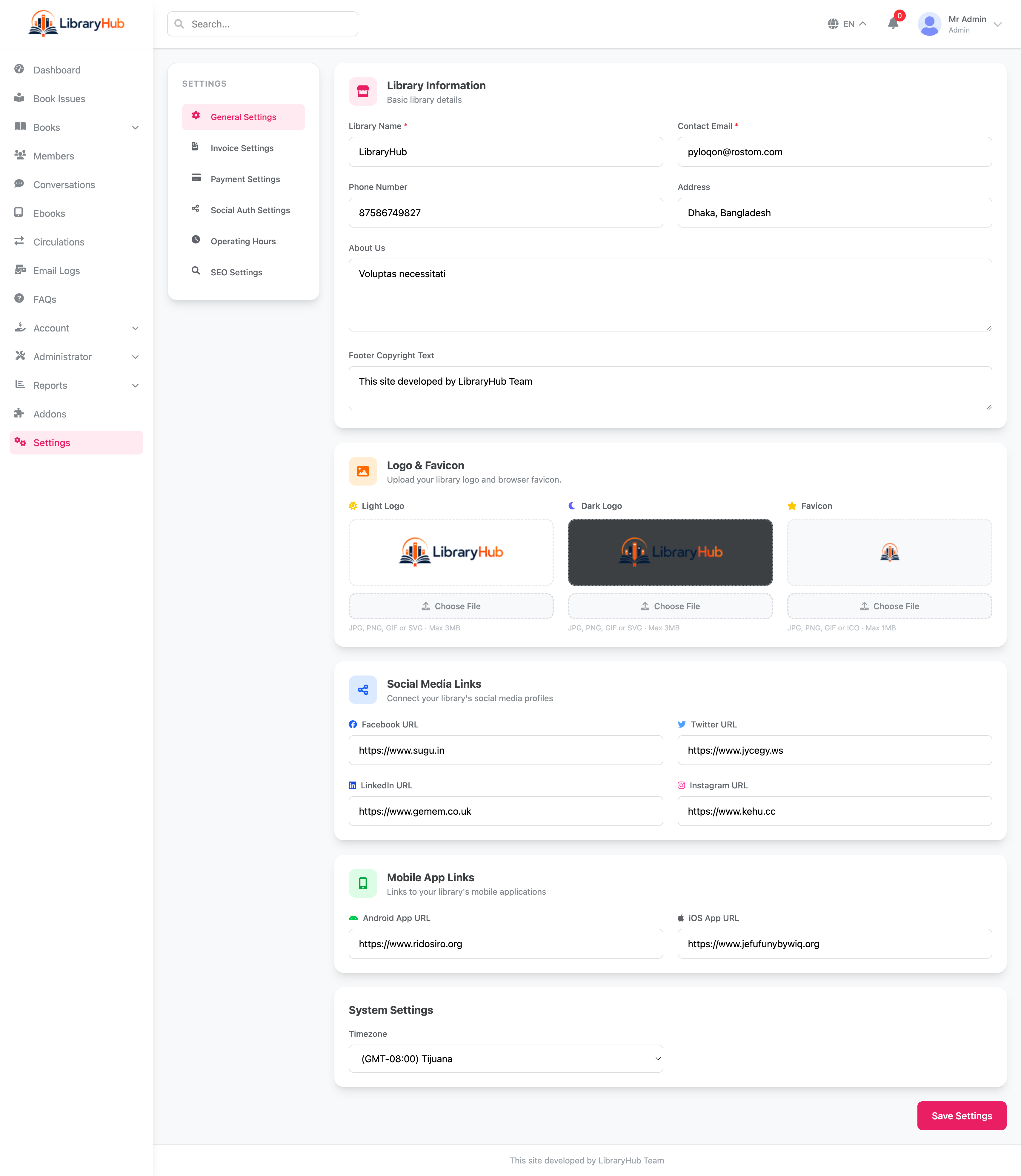
Settings Panel
Centralized settings with tabbed navigation: General (library name, email, phone, address, about, copyright), Logo & Favicon (separate light logo, dark logo, and favicon uploads), Social Media Links, Mobile App Links (Android & iOS), and System Settings (timezone). All changes take effect immediately without server restarts.
Roles & Permissions
Control access to modules and actions using role-based authorization powered by Spatie Permissions. Default roles — Super Admin, Librarian, and Member — each have configurable per-module permission sets editable from the admin panel.
Notifications & Activity Log
In-app notifications for overdue reminders, reservation fulfillment, fine alerts, and operational events. Full activity log tracks every admin and staff action — book issues, returns, fine payments, and setting changes — for complete auditability.
E-Book Management
Upload and manage downloadable e-book files alongside physical catalog entries. Control access per membership type and track download activity from the admin panel.
Payment Tracking & PDF Invoices
Record fine payments and outstanding balances per member. Generate and download itemized PDF invoices for each payment transaction with configurable invoice prefix and footer text.
Two-Factor Authentication
Staff and admin accounts can enable 2FA via Laravel Fortify for a second layer of sign-in security. Protects admin access without requiring third-party services.
Addon System
Extend functionality by installing feature modules as ZIP addons via the admin panel. Install or uninstall addons without touching the core codebase. The Member Portal ships as a built-in addon.
Member Portal
Optional member-facing portal addon gives library patrons their own login interface to browse the catalog, view active borrows, track reservations, review fines, and manage their profile.
Settings Panel
Centralized admin settings covering general library info, email/SMTP, payment gateway toggle, SEO meta tags, social media links, operating hours, and invoice prefix and footer — all editable from the UI.
FAQ & Slider Management
Manage public-facing FAQ entries and homepage banner slides directly from the admin panel with no code changes required for content updates.
Demo Mode & Custom Error Pages
Enable demo mode (APP_DEMO=true) to display pre-filled credentials on the login page for showcasing. Branded 404, 403, 500, and 503 error pages are included out of the box.
Multi-language Support
LibraryHub ships with five built-in language files: English, Bengali, German, Spanish, and Hindi. Set the default language from the settings panel and add further translations by editing the language files in lang/.
7. REST API Documentation
Authentication
The API uses Laravel Sanctum token authentication. Log in with valid credentials, receive a token, and send it with every protected request.
Authorization: Bearer YOUR_ACCESS_TOKEN
Accept: application/json
Base URL
Use your own domain in production. A standard API base URL looks like this:
https://yourdomain.com/apiEndpoint Groups
| Method | Path | Description |
|---|---|---|
| GET | /basic-info | Public library branding and basic configuration for integrations and client apps. |
| GET | /categories | List book categories and genres. |
| GET | /languages | List available languages for localized rendering. |
| POST | /login | Authenticate a user and return a Sanctum bearer token. |
| POST | /register | Register a member-facing API user when self-service registration is enabled. |
| POST | /forgot-password | Start password reset flow for API users. |
| GET | /me | Return the authenticated user summary including membership status. |
| POST | /logout-all | Invalidate all tokens for the current account. |
| GET | /dashboard/stats | Dashboard totals: total books, members, active borrows, overdue items, fines collected. |
| GET | /lookups | Lookup payloads for statuses and form selectors. |
| GET|PUT|PATCH | /profile | View and update the authenticated user profile. |
| GET|POST|PUT|DELETE | /books | Book catalog CRUD with search, category filter, author filter, and availability status. |
| POST | /books/import | Bulk import books from CSV with ISBN lookup support. |
| GET|POST|PUT|DELETE | /authors | Author CRUD for catalog organization. |
| GET|POST|PUT|DELETE | /publishers | Publisher CRUD for catalog organization. |
| GET|POST|PUT|DELETE | /members | Member CRUD with search, membership type filter, and fine balance. |
| GET | /members/{member}/borrowings | Return full borrowing history for a specific member. |
| GET|POST|PUT|DELETE | /membership-types | Membership type CRUD — borrow limits, duration, and fine rate configuration. |
| GET|POST|PUT|DELETE | /borrowings | Borrowing CRUD — issue books, list active borrows, process returns, handle renewals. |
| POST | /borrowings/{borrow}/return | Process a book return and auto-calculate overdue fines. |
| POST | /borrowings/{borrow}/renew | Extend the due date for an active borrow. |
| GET|POST|DELETE | /reservations | Reservation CRUD — create holds, cancel reservations, list pending holds. |
| POST | /reservations/{reservation}/fulfill | Convert a reservation into an active borrow when the book becomes available. |
| GET|POST | /fines | List outstanding fines, view fine details, and record fine payments. |
| GET | /notifications | List in-app notifications for the authenticated user. |
| GET | /notifications/unread-count | Fetch unread notification count for the authenticated user. |
| PATCH | /notifications/{id}/read | Mark a single notification as read. |
| POST | /notifications/mark-all-read | Mark all notifications as read. |
Example: Login
POST /api/loginRequest body:
{
  "email": "admin@example.com",
  "password": "secret-password",
  "device_name": "postman"
}
Successful response:
{
  "message": "Login successful",
  "token": "1|sanctum_plain_text_token",
  "user": {
    "id": 1,
    "name": "Admin User",
    "email": "admin@example.com",
    "role": "Super Admin"
  }
}
Example: Search Books
GET /api/books?page=1&per_page=20&search=laravel&available=trueExample response:
{
  "data": [
    {
      "id": 5,
      "title": "Laravel: Up & Running",
      "isbn": "9781492041214",
      "author": "Matt Stauffer",
      "category": "Programming",
      "available_copies": 2,
      "total_copies": 3,
      "status": "available"
    }
  ],
  "meta": {
    "current_page": 1,
    "per_page": 20,
    "total": 1
  }
}
Example: Issue a Book
POST /api/borrowingsRequest body:
{
  "member_id": 12,
  "book_copy_id": 7,
  "due_date": "2025-07-15"
}
Example response:
{
  "message": "Book issued successfully",
  "data": {
    "id": 88,
    "member": "John Carter",
    "book": "Laravel: Up & Running",
    "issued_date": "2025-06-20",
    "due_date": "2025-07-15",
    "status": "active"
  }
}
Example: Process Return
POST /api/borrowings/88/returnExample response:
{
  "message": "Book returned successfully.",
  "fine": {
    "days_overdue": 0,
    "fine_amount": 0.00,
    "status": "no_fine"
  }
}8. Catalog Setup
Tip: Set up categories, authors, and publishers before adding books. This ensures books can be properly categorized during entry and avoids orphaned records.
Configure the catalog foundations before importing or adding books manually.
- Log in to the admin panel.
- Open Categories from the sidebar and create your genre/category taxonomy.
- Open Authors and add the main authors in your collection.
- Open Publishers and register publishers as needed.
- Open Books and add titles one by one, or use Import CSV for bulk entry.
- For each book, add copies under the book detail screen with copy number and condition.
- Verify availability status shows correctly before going live.
Book Fields
- Title
- ISBN (10 or 13 digit)
- Author(s)
- Publisher
- Category / Genre
- Publication year
- Cover image
- Description / Summary
Copy Fields
- Copy number / barcode
- Condition (New, Good, Fair, Poor)
- Location / shelf reference
- Availability status
- Date added to collection
CSV Import Format
- title
- isbn
- author
- publisher
- category
- year
- copies (quantity)
9. E-Book Management
LibraryHub supports digital content alongside physical books. Upload e-book files directly to the system and attach them to catalog entries. Access control is handled per membership type so only authorized members can download.
E-Book Features
- ✓ Upload and attach e-book files to existing catalog entries
- ✓ Supported formats: PDF, ePub, and other document types
- ✓ Per-membership-type download access control
- ✓ Manage and replace e-book files from the admin panel
- ✓ Files stored and served via Spatie MediaLibrary
Admin Workflow
- Open a book entry in the catalog.
- Navigate to the E-Book tab on the book detail screen.
- Upload the e-book file using the file picker.
- Set access permissions for which membership types can download.
- Save — the file is now available to eligible members.
Storage note: E-book files are stored in storage/app/public via Spatie MediaLibrary. Ensure the storage:link symlink is in place and the storage directory has write permissions (775) before uploading files.
10. Role & Permission System
LibraryHub uses a role-based permission system powered by Spatie Permissions. Roles collect one or more permissions, and users inherit those permissions when a role is assigned.
How Roles Work
- • Permissions define individual abilities such as issuing books, editing the catalog, or viewing reports.
- • Roles group permissions into reusable job-based access profiles.
- • Users receive access by being assigned one or more roles.
Default Roles
- • Super Admin — full access to all features and settings
- • Librarian — catalog, borrowing, members, reservations, fines
- • Member — catalog browsing, own borrowings, reservations, fines
Creating a Custom Role
- Go to Roles & Permissions in the admin panel.
- Create a new role and enter a descriptive name.
- Select the permissions that role should have.
- Save the role.
- Open the user management screen and assign the new role to one or more users.
- Log in with a test account to verify that access is limited correctly.
11. Addon System
LibraryHub supports installable addon modules that extend the core system without modifying it. Addons are packaged as ZIP files and managed entirely from the admin panel — no CLI or code changes required.
How Addons Work
- ✓ Upload a ZIP addon package via Admin Panel → Addons
- ✓ The system extracts, registers, and activates the module
- ✓ Addons can add routes, views, models, and settings
- ✓ Uninstalling removes the module without affecting core files
Member Portal Addon
The Member Portal is included in your purchase and ships as a ready-to-install addon. It gives library patrons their own login interface with:
- • Member login, profile, and account settings
- • Active borrow list and full borrowing history
- • Reservation status and cancellation
- • Fine overview and payment history
Installing an Addon
- Go to Admin Panel → Addons.
- Click Upload Addon and select the addon ZIP file.
- The system validates, extracts, and registers the addon automatically.
- Activate the addon from the addon listing screen.
- The new module's menu items and routes become available immediately.
12. Upgrading
When a new version is released, apply the update carefully to avoid overwriting your live configuration or uploaded content.
- Create a full backup of files and database before starting.
- Read the release notes and changelog included with the update package.
- Upload the new files, replacing only the application files that belong to the product update.
- Do not overwrite your existing
.envfile. - Run dependency updates if the release notes require them:
composer install --optimize-autoloader --no-dev
npm install
npm run build- Run database migrations:
php artisan migrate- Clear and rebuild caches:
php artisan optimize:clear
php artisan config:cache
php artisan route:cache
php artisan view:cache13. FAQ / Troubleshooting
Overdue fines are not calculating
Symptoms: returned books show no fine even when overdue, fine balance stays at zero.
- Confirm a daily fine rate is set in the membership type settings.
- Verify
QUEUE_CONNECTIONis set correctly in.envand the queue worker is running. - Run
php artisan queue:workmanually to process any stuck jobs. - Check
storage/logs/laravel.logfor fine calculation errors.
Book availability not updating after return
- Ensure the return was processed through the Borrowings screen, not deleted directly from the database.
- Clear application cache:
php artisan optimize:clear. - Check for pending reservation fulfillment — a returned book may immediately move to Reserved status for a waiting member.
Permission denied or 403 errors
- Check that the logged-in user has the required role or permission.
- Clear cached permissions if you changed role rules recently.
- Verify folder permissions on
storageandbootstrap/cache.
php artisan optimize:clearNotifications not arriving or emails not sending
Symptoms: members receive no overdue alerts or reservation notifications.
- Confirm the queue worker is running:
php artisan queue:work. - On VPS, check Supervisor is active:
sudo supervisorctl status. - Verify SMTP settings in Admin Panel → Settings → Email and in
.env(MAIL_HOST,MAIL_PORT,MAIL_USERNAME,MAIL_PASSWORD). - Check
storage/logs/laravel.logfor mail or queue errors. - Run
php artisan queue:failedto list failed notification jobs.
Addon installation fails or addon not appearing after upload
- Ensure the ZIP file is a valid LibraryHub addon package, not a raw source archive.
- Confirm the
storagedirectory is writable by the web server user (chmod -R 775 storage). - Check that
ext-zipis enabled in your PHP installation. - Run
php artisan optimize:clearafter installation if routes do not appear.
E-book file upload fails or download link returns 404
- Confirm
php artisan storage:linkhas been run and thepublic/storagesymlink exists. - Verify
storage/app/publicis writable:chmod -R 775 storage. - Check
APP_URLin.envmatches your actual domain — incorrect URLs break file path generation. - Check
php.iniforupload_max_filesizeandpost_max_sizeif large files fail silently.
14. Support
Support is provided for verified buyers according to the Envato item support policy. Keep your purchase code available when contacting the author.
How to Get Help
You can reach the author through any of the following channels:
- • CodeCanyon item support tab (preferred for purchase-related issues)
- • Email: rostomali4444@gmail.com
Please include your purchase code, a clear description of the issue, any error messages, and the steps you have already tried. This helps resolve issues faster.
Typical Response Time
Most support requests are answered within 1–2 business days, depending on workload and timezone. Complex issues may take longer.
What's Included in Support
- ✓ Answering questions about how the product works
- ✓ Help with installation and initial configuration
- ✓ Bug reports and confirmed defects in the original source
- ✓ Guidance on updating to a new version
What's Not Included
- ✗ Custom feature development or modifications
- ✗ Third-party server setup or hosting administration
- ✗ Support for heavily modified versions of the codebase
- ✗ Issues caused by incompatible plugins or server configurations